Log in to the HMI
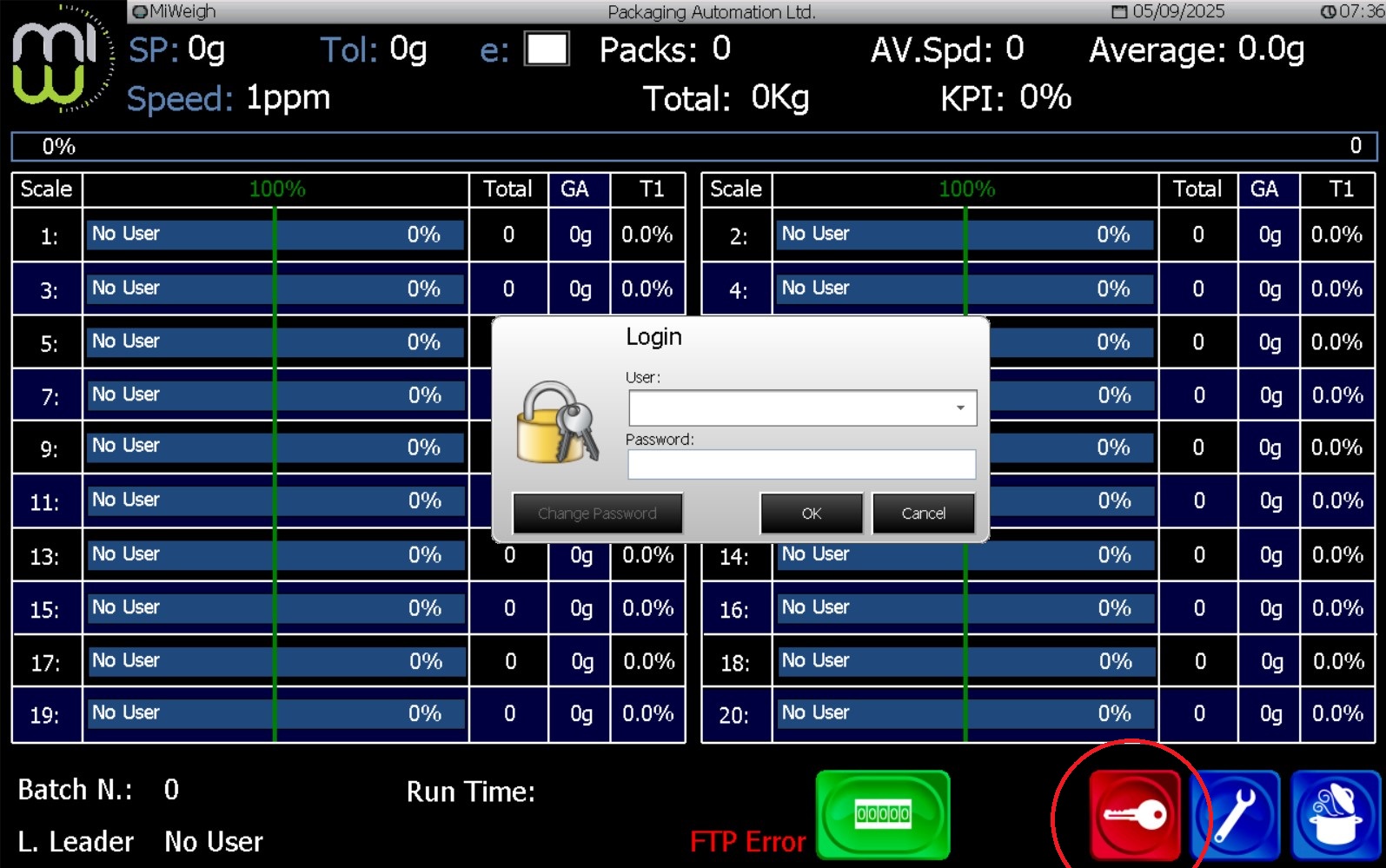
On the main HMI screen, press the Key icon.
Enter your operator or administrator password if prompted.
This step ensures only authorised users can adjust system settings.
Open the Settings menu
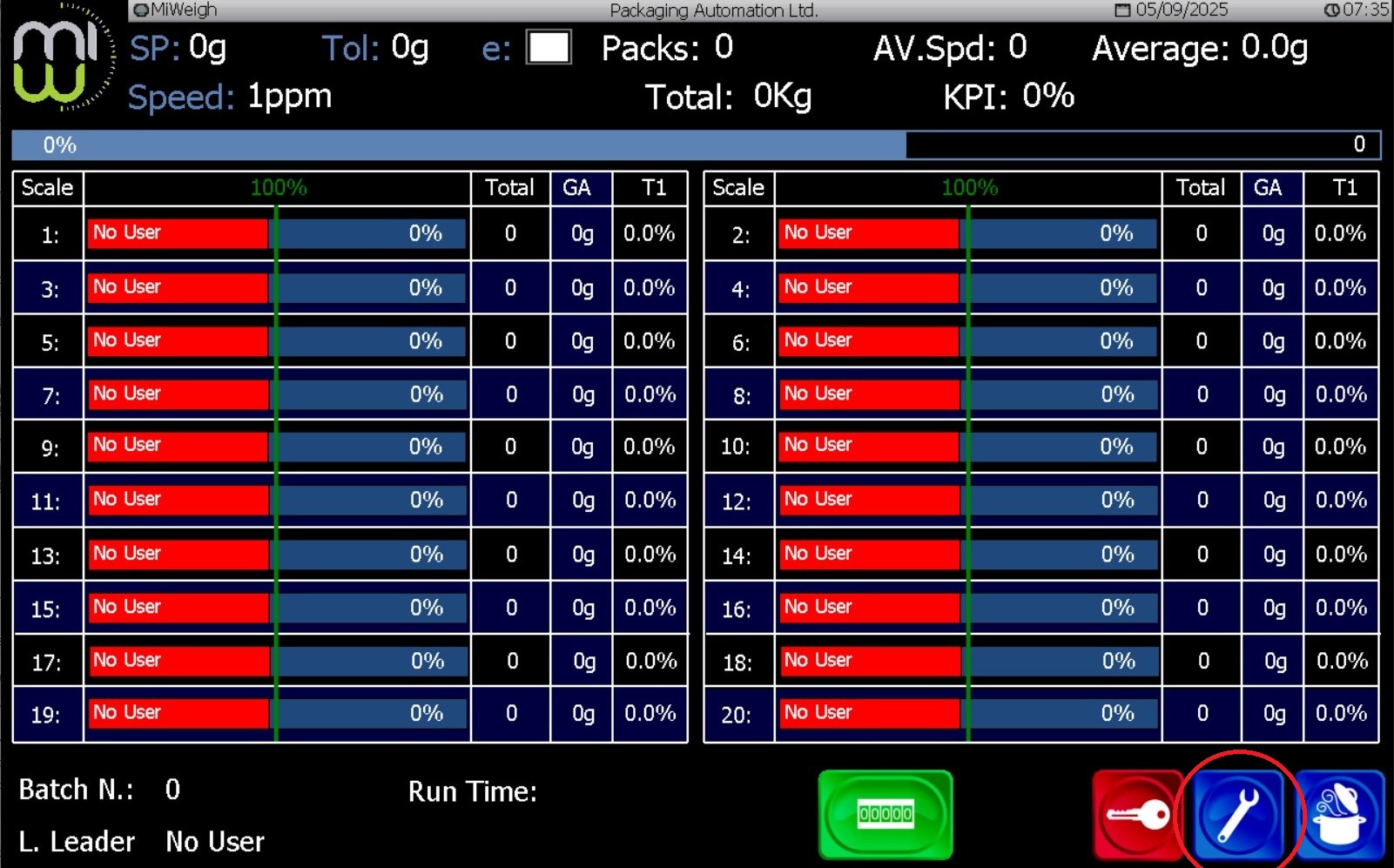
After logging in, press the Settings icon.
The HMI will display a menu with different configuration options.
Navigate to the Management tab
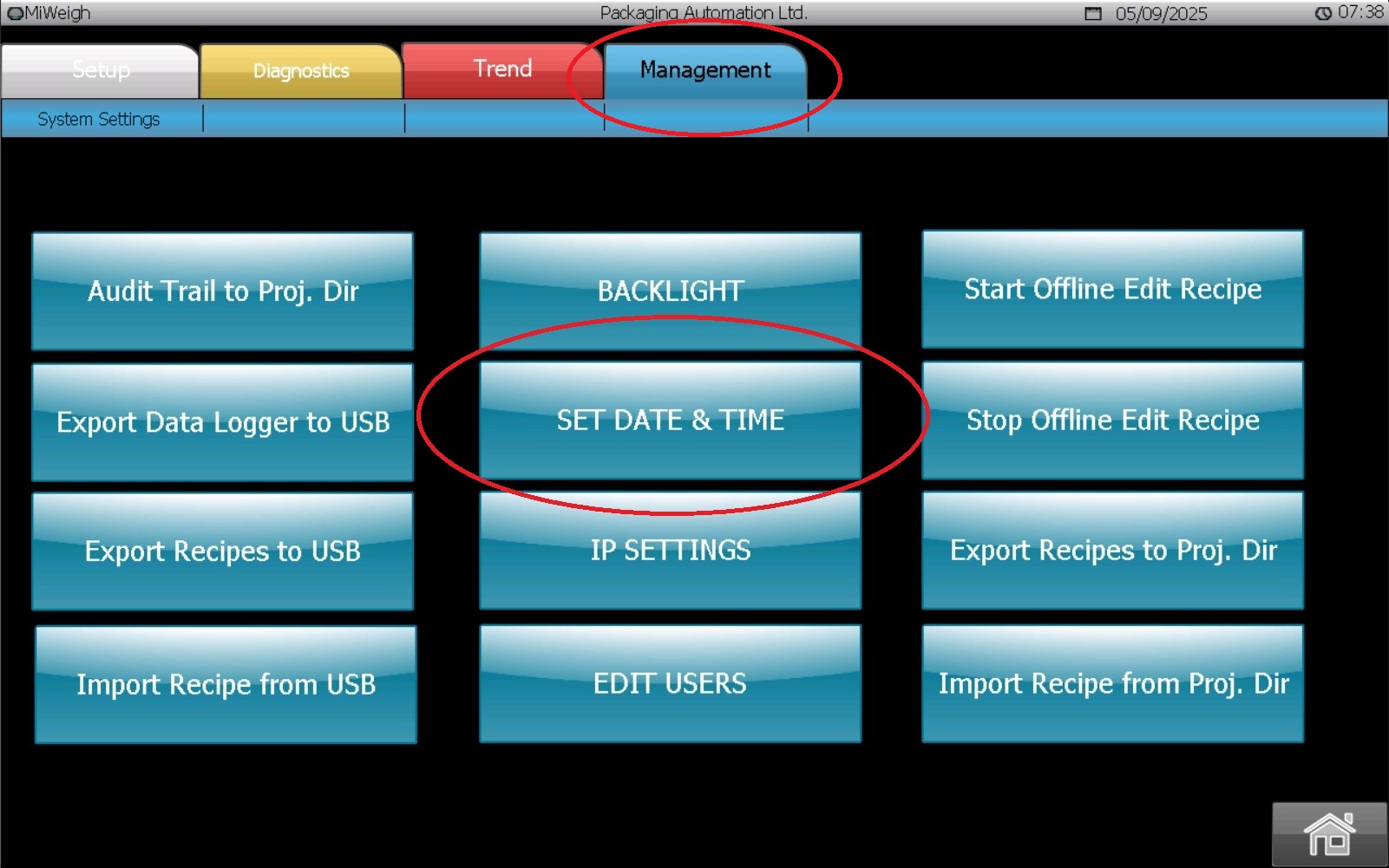
Within the menu, select the Management tab.
This section contains system-level options such as user management and system time configuration.
Access the Date/Time settings
In the Management tab, press Date/Time.
The screen will display the current system date and time, along with options to edit them.
Adjust the Date and Time
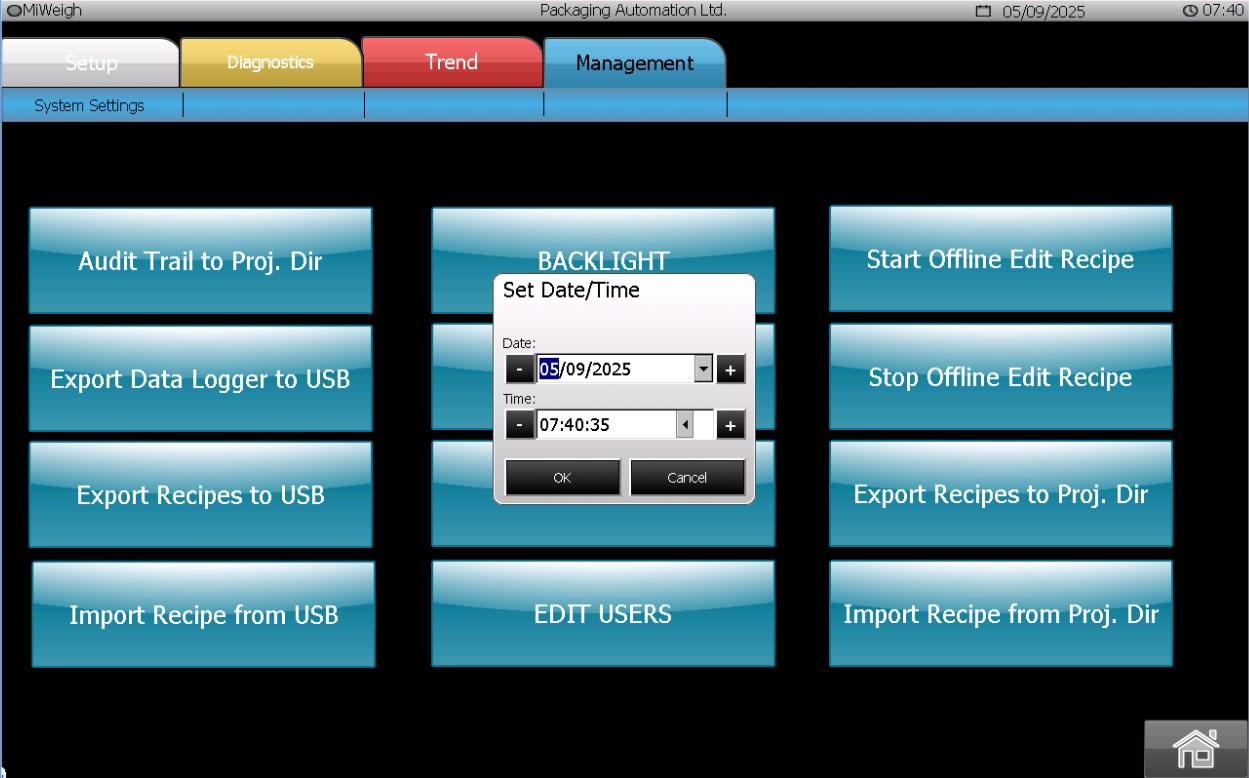
Use the on-screen controls to change the date and time values.
Make sure the format (day/month/year and hour/minute) is entered correctly.
Double-check your entries before saving.
Save the new settings
Press OK or Confirm to apply the changes.
The HMI system clock will update immediately.
The new date and time will now be reflected across the MiWeigh system.
Was this article helpful?
That’s Great!
Thank you for your feedback
Sorry! We couldn't be helpful
Thank you for your feedback
Feedback sent
We appreciate your effort and will try to fix the article