The Plan Manager page lets you manage everything related to your subscription in one place. From this page, you can review your current plan, check your next payment, update your payment method, change your subscription, and download past invoices.
This guide explains each section in detail and what you should expect when making changes.
Step 1: Open the Plan Manager page
First, log in to your dashboard.
Navigate to the Plan Manager page from the dashboard menu.
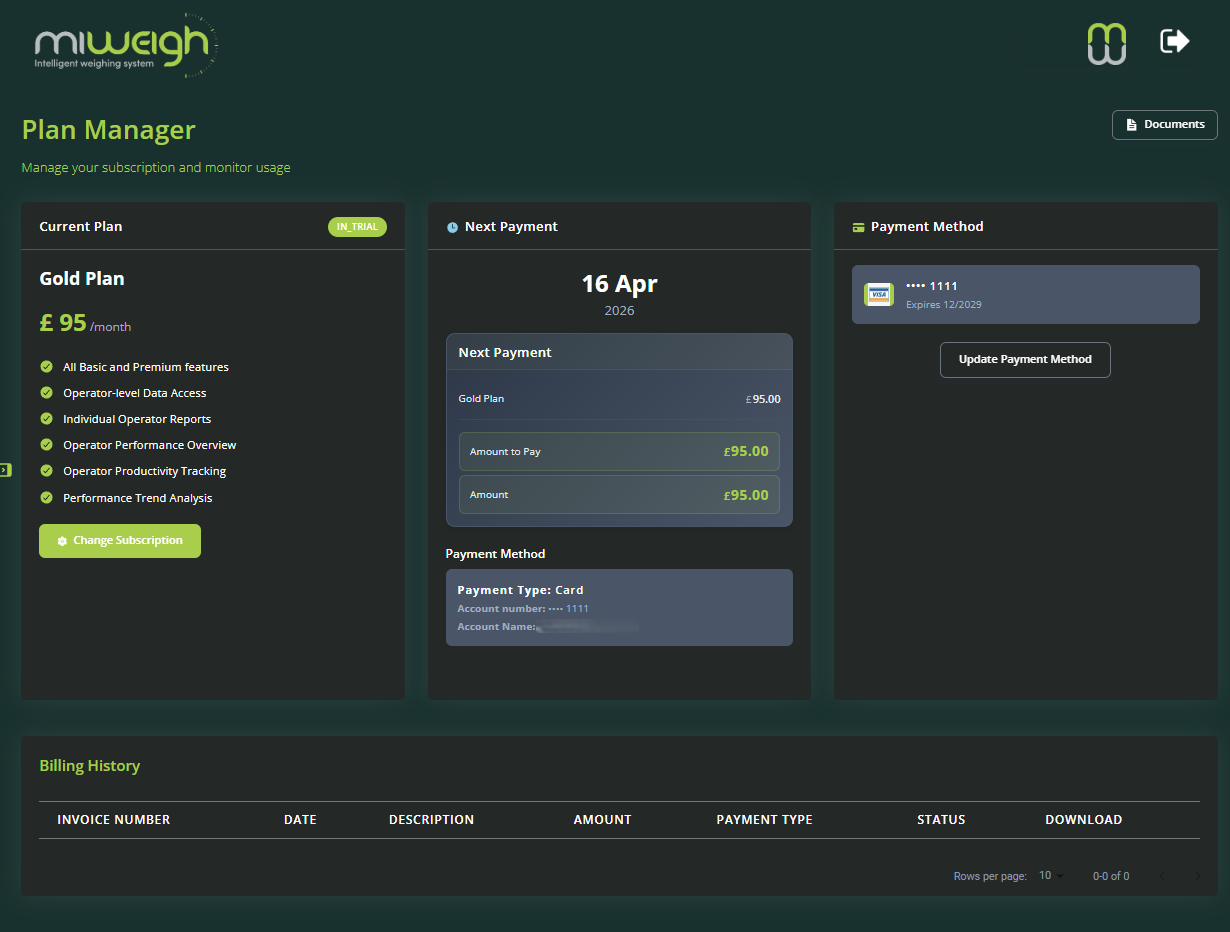
When the page opens, you will see four main areas:
Current Plan
Next Payment
Payment Method
Billing History
This page is designed to give you a full overview of your subscription and billing information.
Step 2: Review your Current Plan
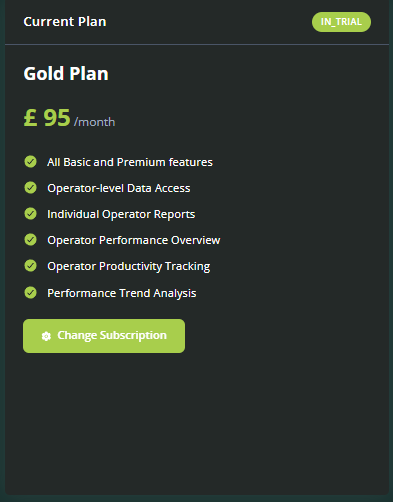
The Current Plan panel is shown on the left side of the page.
This section tells you which subscription is currently active on your account.
Here, users can see:
The name of their current plan
The monthly price
Whether the plan is active
The features included in the plan
For example, if you are on the Gold Plan, you will see the price per month and a list of included features underneath.
This section is useful when you want to confirm exactly what you are paying for and what is included in your subscription.
At the bottom of this panel, there is a Change Subscription button. This is the button users click when they want to move to a different plan.
Step 3: Change your subscription
To change plans, click Change Subscription.
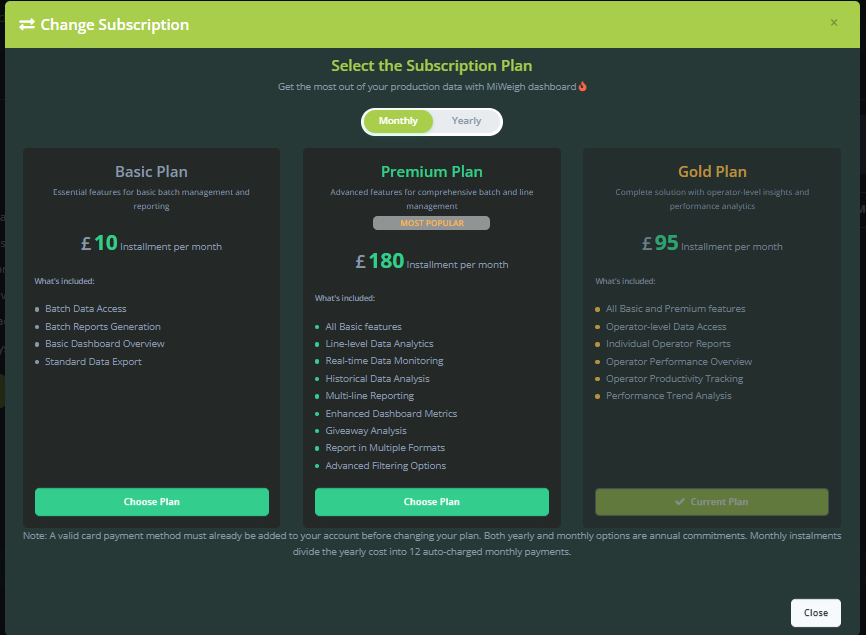
A popup window will appear with the available subscription plans.
In this window, users can:
Compare available plans
Review the price of each plan
Read the features included in each plan
Switch between Monthly and Yearly options
Select a new plan using the Choose Plan button
The current plan will usually be marked clearly so you can see which plan you are already on.
How to choose a new plan
Click Change Subscription
Review the available plans in the popup
Use the Monthly / Yearly toggle if needed
Compare the plan features
Click Choose Plan under the plan you want
What happens when upgrading
If you select a more expensive plan, the new plan will usually begin straight away.
This often means you may be charged the difference in price immediately. This is sometimes shown as a prorated charge.
You must have a valid credit or debit card payment setup as primary payment method in order to upgrade the subscription tier. Account upgrade will not be processed if direct debit is setup for the account.
What happens when downgrading
If you select a cheaper plan, the downgrade will take effect immediately, but the difference in cost will be added to your account as credit and will be deducted during payment cycle.. This will be clearly displayed in the payment section. Downgrading will immediately remove feature access according to the subscription plan.
If you change your mind
You can close the popup using the Close button or the X in the top corner without making any changes.
Step 4: Check the Next Payment section
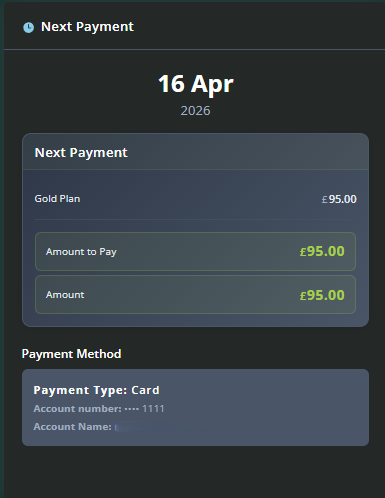
The Next Payment panel is displayed in the middle of the page.
This section helps you understand exactly when you will be billed next and how much you are expected to pay.
It typically shows:
The date of the next payment
The plan the payment relates to
The total amount due
The payment method that will be used
This section is especially useful if you want to confirm:
when your next charge will happen
how much you will be charged
which payment method will be used for that payment
How to read this section
At the top of the panel, the next payment date is shown clearly.
Below that, the plan name and amount are listed.
Further down, there is usually a smaller payment method summary showing the payment type and masked account details.
Customers should use this section to verify their upcoming billing before the payment date arrives.
Step 5: Review saved payment methods
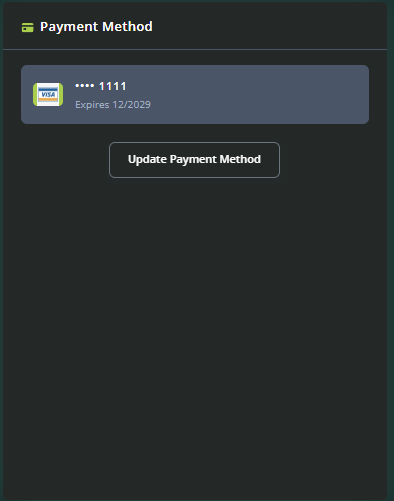
On the right side of the page, users will see the Payment Method section.
This area shows the payment methods saved on the account.
Depending on the account, this may include:
Card payments
Direct debit accounts
Each saved payment method usually shows some identifying information, such as:
The masked card or account number
The name on the account, where applicable
The last updated date
This allows customers to confirm whether the correct payment method is linked to the account.
If multiple payment methods are shown, users should check which one is intended for future payments.
Step 6: Update or add a payment method
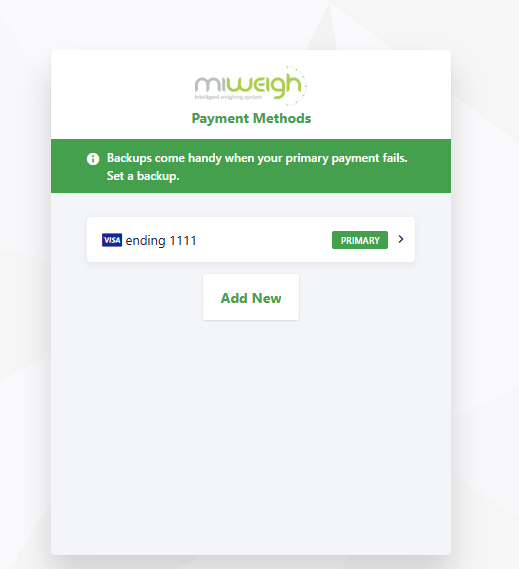
If you need to replace an expired card, add a new card, or update bank details, you should click Update Payment Method.
To update payment details
Go to the Payment Method section
Click Update Payment Method
Enter the new payment details when prompted
Review the information carefully
Save or confirm the update
Once the new details are saved, they will be used for future charges.
It is important to keep this information up to date, because failed payments may interrupt service or prevent subscription changes.
When you should update payment details
You should update your payment method if:
your card has expired
you have received a replacement card
you want to switch from one payment method to another
your bank account details have changed
Step 7: Review Billing History
Below the main panels, users will see the Billing History table.
This section contains a record of previous charges and invoices.
Each row in the table usually includes:
Invoice number
Date
Description
Amount
Payment type
Status
Download button
This section is useful to review old charges, confirm whether an invoice was paid, or download billing records for your own accounts team.
How to read the Billing History table
Invoice Number helps identify a specific invoice
Date shows when the charge was created
Description explains what the charge was for
Amount shows the value charged
Payment Type shows how the payment was processed
Status confirms whether the invoice has been paid
Download allows the user to save a copy of the invoice
Step 8: Download an invoice
To download an invoice from Billing History:
Find the relevant row in the Billing History table
Check the invoice number, date, or description to make sure it is the correct one
Click Download
Save the invoice file to your device
You may need invoices for:
bookkeeping
internal finance records
tax or accounting purposes
support queries
If a you are looking for proof of payment, this is the best section to check first.
Step 9: Understand billing changes after a plan update
If you upgrade
Moving from a lower-cost plan to a higher-cost plan will usually apply immediately.
Because of this, you may see a charge straight away for the difference between the old plan and the new plan.
You must have a valid credit or debit card payment setup as primary payment method in order to upgrade the subscription tier. Account upgrade will not be processed if direct debit is setup for the account.
If you downgrade
Moving from a higher-cost plan to a lower-cost plan will take effect immediately and additional access features you had previously will be revoked. The difference in price between two subscription models will be added to your account as credit and deducted on the next billing cycle.
If a charge appears unexpectedly
Customers should review:
the plan they selected
the next payment details
any billing history entries showing prorated charges
This is especially important if they upgraded partway through a billing cycle.
Step 10: What you should check regularly
To avoid billing issues, users should check the Plan Manager page regularly and make sure:
the correct plan is active
the next payment amount looks correct
the payment method is up to date
invoices can be downloaded when needed
This is particularly helpful before the renewal date or after a subscription change.
Troubleshooting tips
I cannot change my subscription
Check that a valid payment method has already been added to the account. Subscription changes may require a working payment method before they can be completed.
My card has expired
Go to the Payment Method section and click Update Payment Method to replace it.
I upgraded and was charged immediately
This is expected in many cases. Upgrades often trigger an immediate prorated charge for the price difference.
I downgraded but my plan has not changed yet
This is also expected in most cases. Downgrades usually take effect at the next billing date.
I need a copy of an old invoice
Go to Billing History and click Download next to the invoice you need.
Was this article helpful?
That’s Great!
Thank you for your feedback
Sorry! We couldn't be helpful
Thank you for your feedback
Feedback sent
We appreciate your effort and will try to fix the article