Creating accurate and consistent recipes is critical to ensuring product quality and operational efficiency. This guide provides clear, step-by-step instructions on how to easily create, customize, and export new recipes within the MiWeigh Dashboard. Follow these straightforward steps to ensure your recipes meet production requirements and improve your workflow.
Step 1: Logging into Your Dashboard
Log in to your MiWeigh account using your credentials. Enter the two-factor authentication (2FA) code sent to your registered email if prompted, then navigate to the dashboard homepage.
Step 2: Navigating to Recipe Management
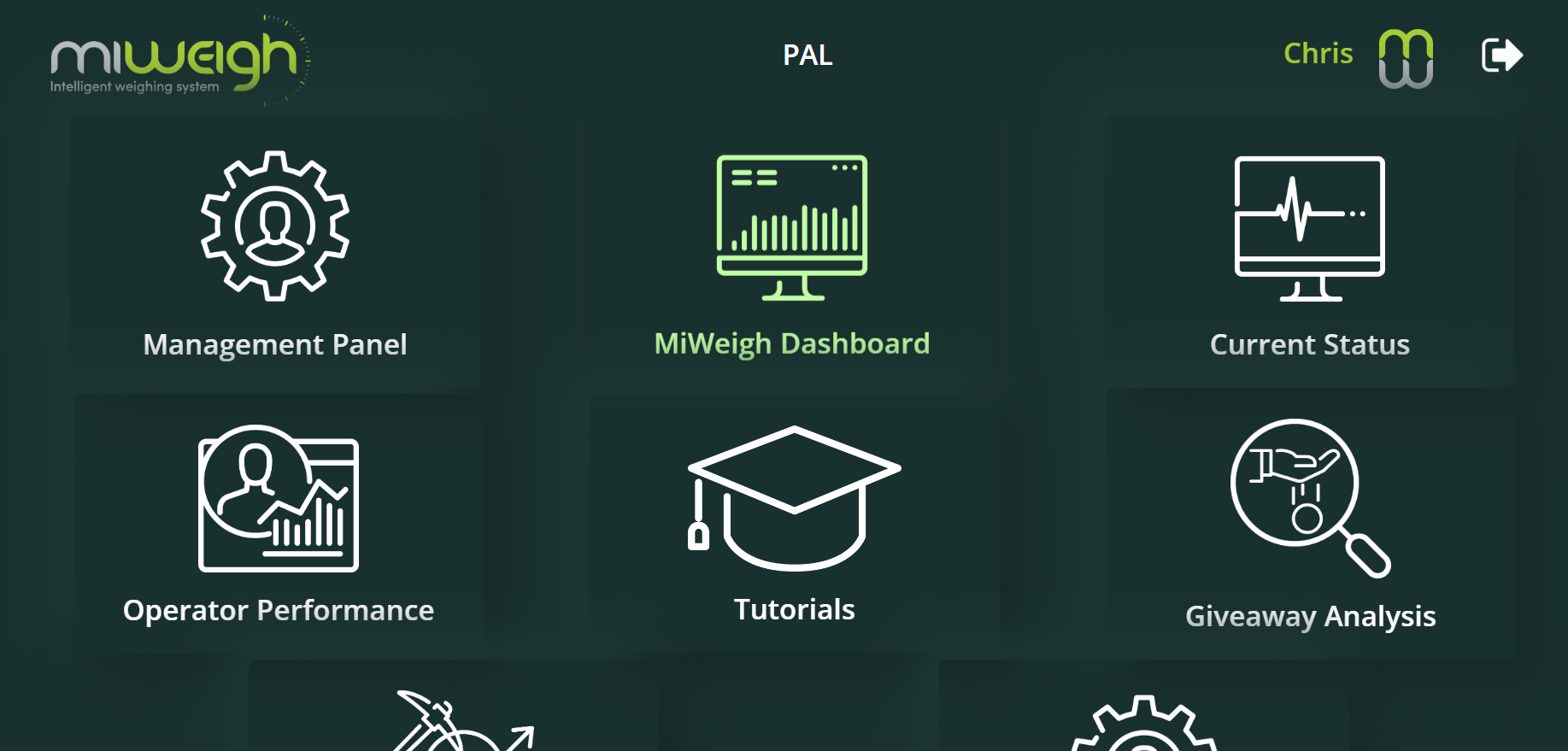
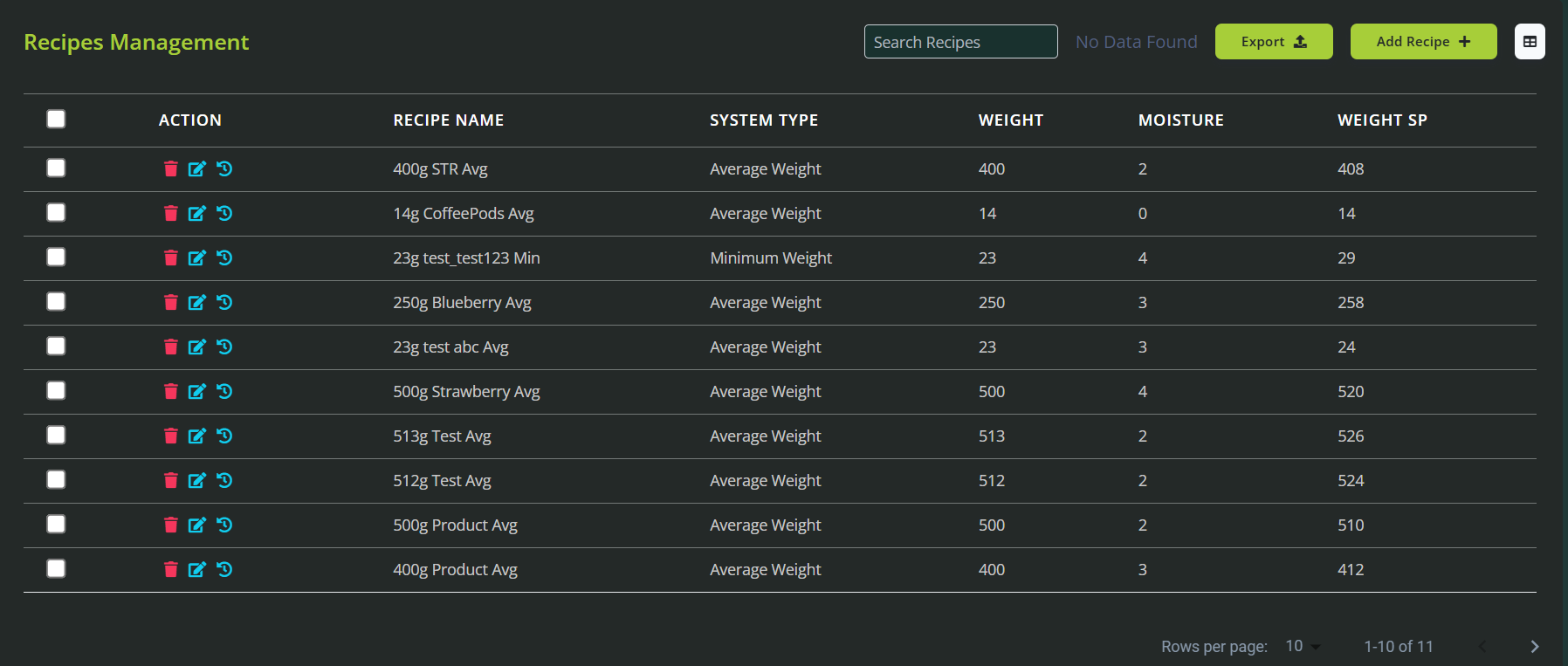
From the main dashboard, scroll down to the "Recipe Management" section. This area allows you to review existing recipes and create new ones.
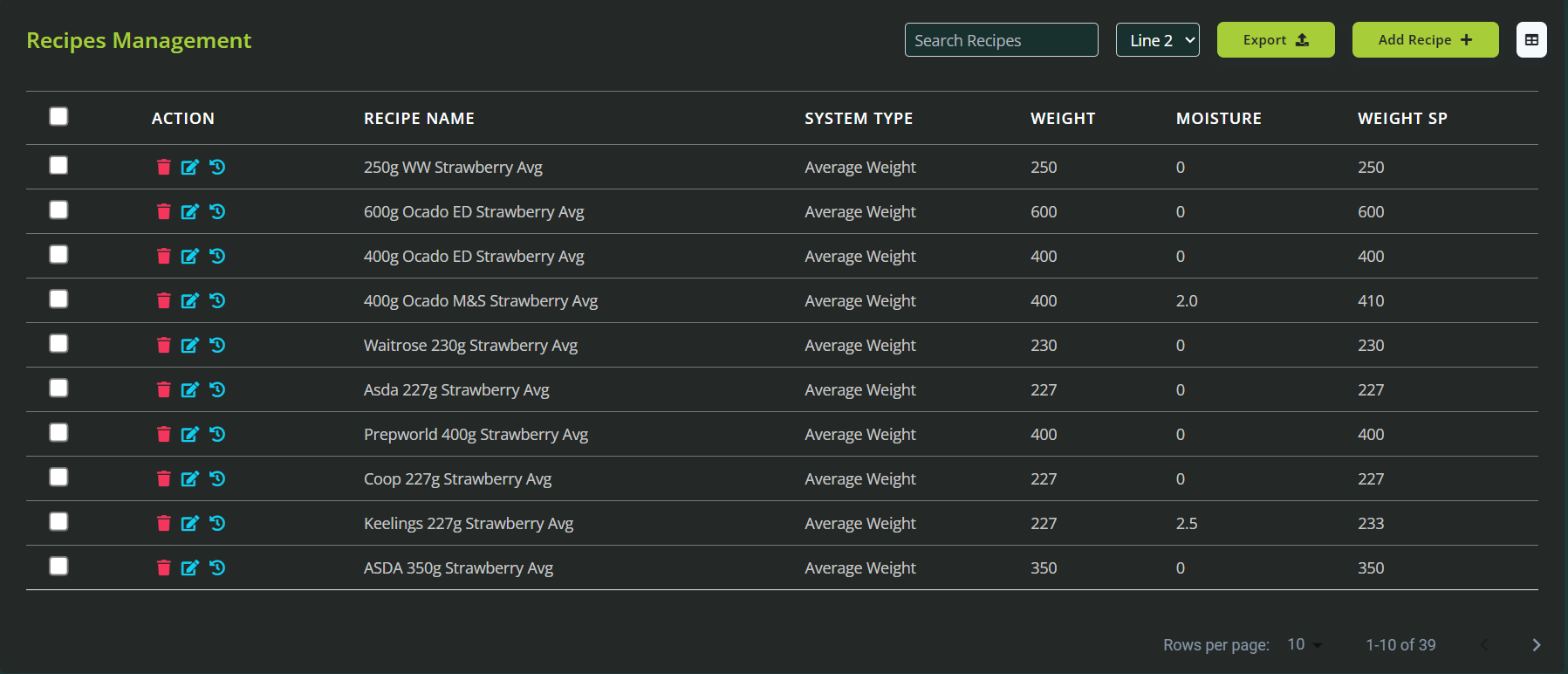
Step 3: Creating a New Recipe
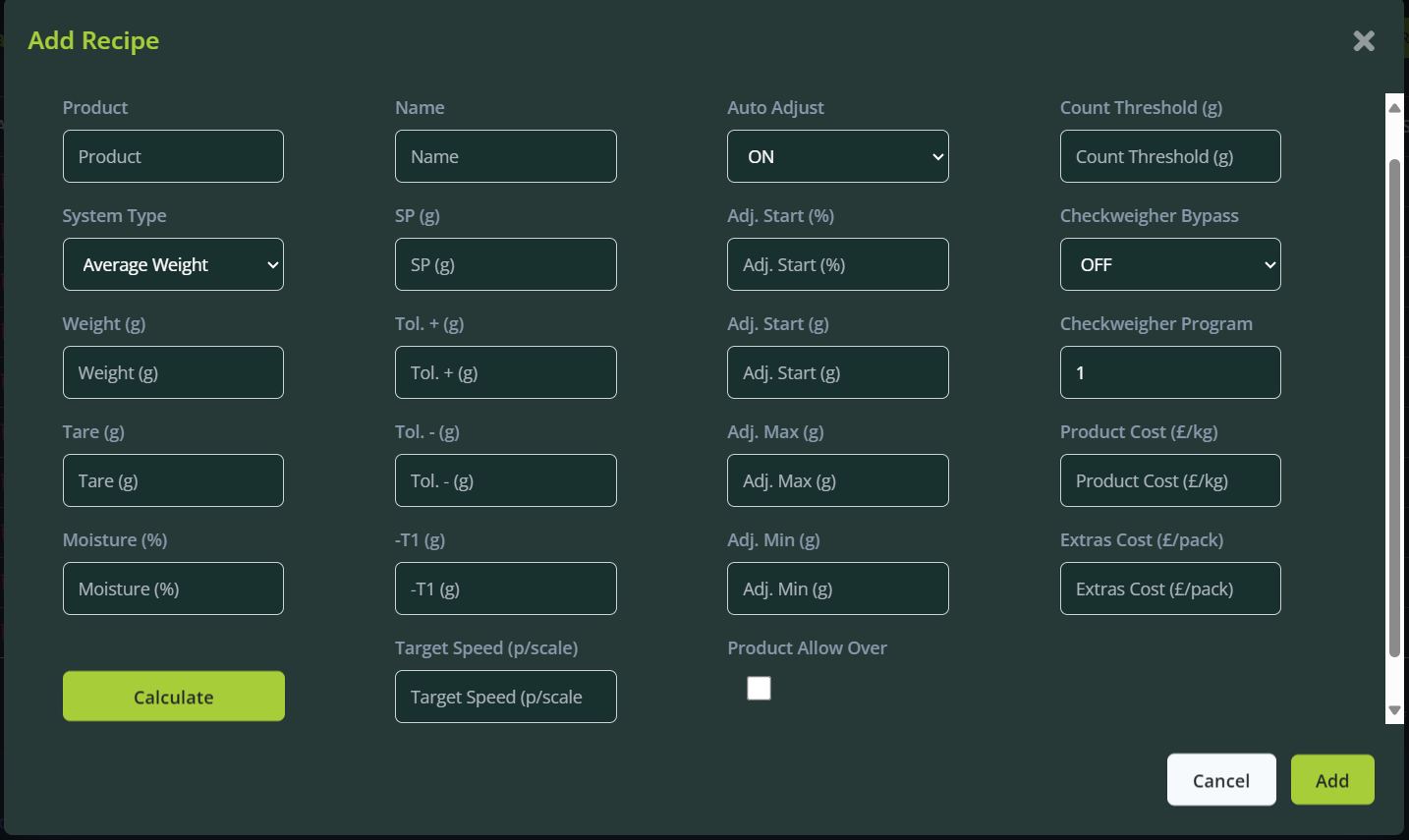
Click "Add Recipe" to open the new recipe form. Complete the following fields:
Product: Clearly specify the product name, e.g., "Strawberries" or "Blueberries."
System Type: Choose your weighing method from the dropdown. Select "Minimum Weight" for consistent minimum weight requirements or "Average Weight" if aiming for a balanced distribution around a target weight.
Weight: Input the target weight for packaging in grams.
Tare: Enter the packaging weight in grams.
Moisture Loss: Include anticipated moisture loss to adjust the scale setpoint accurately. For example, if the product loses 2 grams in moisture post-packaging, enter "2" grams here.
Note: Some Premium customers may have a drop down list for Product, Brand, Tier and Weight. You will need to create these variables prior to creating the recipe if they are not available in the list.

Click "Calculate" to automatically fill additional recipe parameters. Fields can be manually adjusted if necessary. Hover over field names for explanations of their functions.
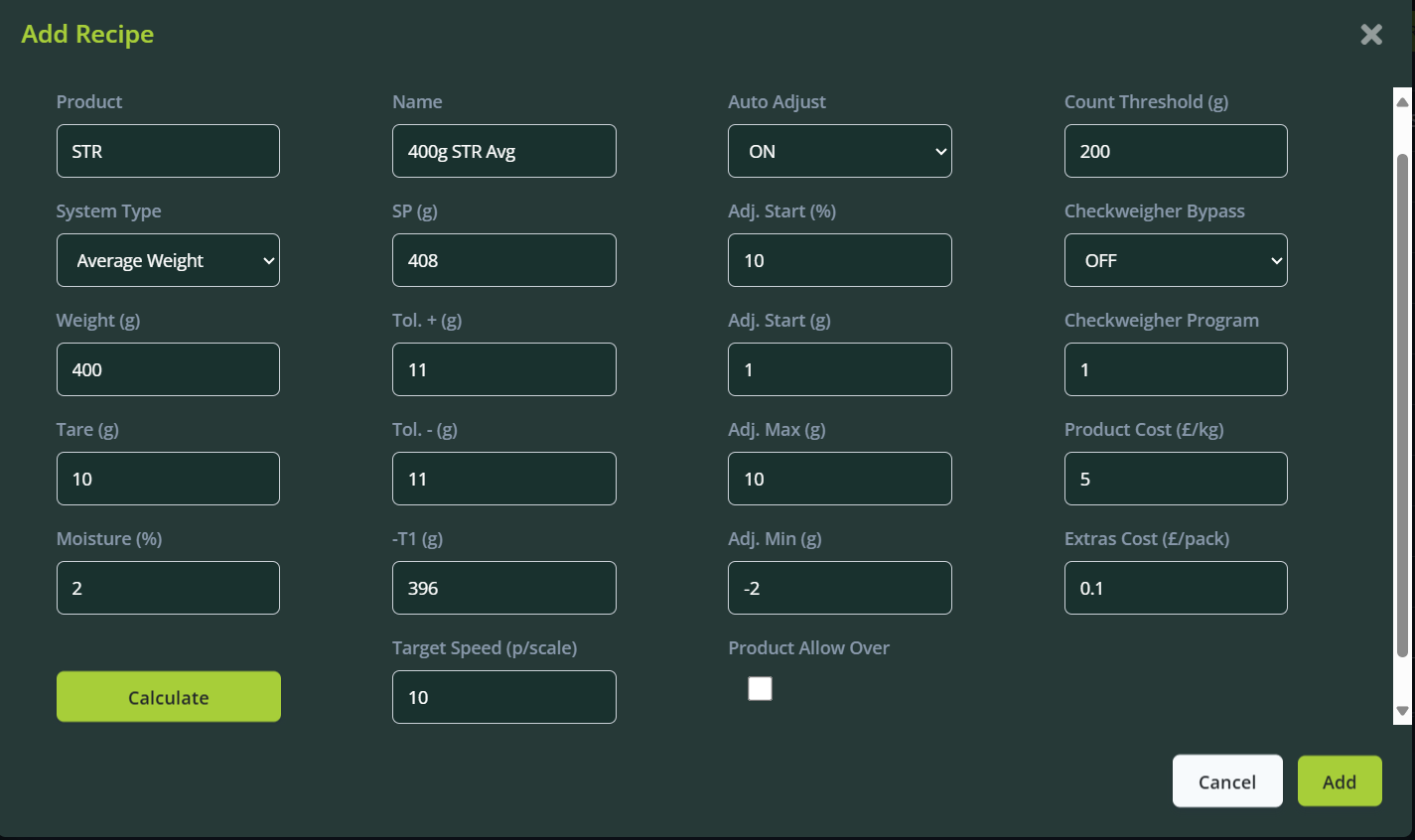
Click "Add" to finalise your recipe, which will now appear at the top of the Recipe Management list.
Step 4: Exporting Recipes
To export a recipe:
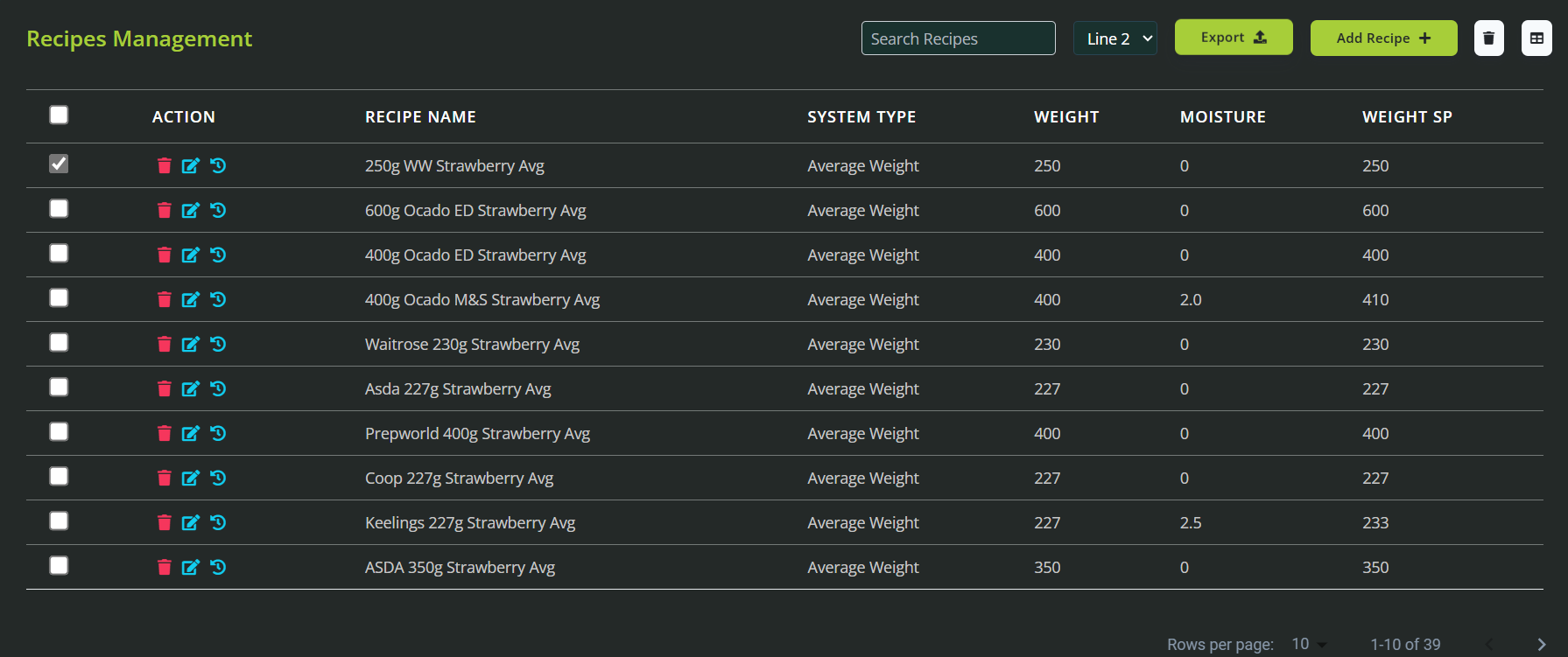
Select the checkbox beside your chosen recipe.
Choose the production line from the dropdown at the top of the section.
Click "Export" to send the recipe directly to your selected production line.
After exporting, upload the file directly to the corresponding weighing machine, following your equipment-specific procedures.
Tips for Successful Recipe Creation
Descriptive Product Names: Use precise product names to ensure clarity during production.
Attribute Verification: Double-check critical fields such as weight, tare, and moisture loss, as inaccuracies can impact operational efficiency and product consistency.
Utilise Field Help: Click field descriptions to clearly understand the impact each attribute has on your production outcomes.
Creating and exporting recipes with the MiWeigh Dashboard simplifies your production processes, ensuring consistency and efficiency. For further assistance, contact MiWeigh support or explore additional guides available within the dashboard.
Was this article helpful?
That’s Great!
Thank you for your feedback
Sorry! We couldn't be helpful
Thank you for your feedback
Feedback sent
We appreciate your effort and will try to fix the article