The MiWeigh Reports page allows users to generate detailed reports based on production data, operator performance, and line activity. This guide explains how to use the filters, select data for reporting, and download the results in Excel format.
Filters
Use the filters at the top of the page to narrow down the data before selecting it for reporting.
Available Filters:
Date Range – Select the time period you want to report on.
Line – Filter the data to specific production lines.
Recipe – Focus on batches made using selected recipes.
All tables on the page will update based on your filter selections.

Data Tables
Once filters are applied, three tables are displayed, each containing different sets of production data:
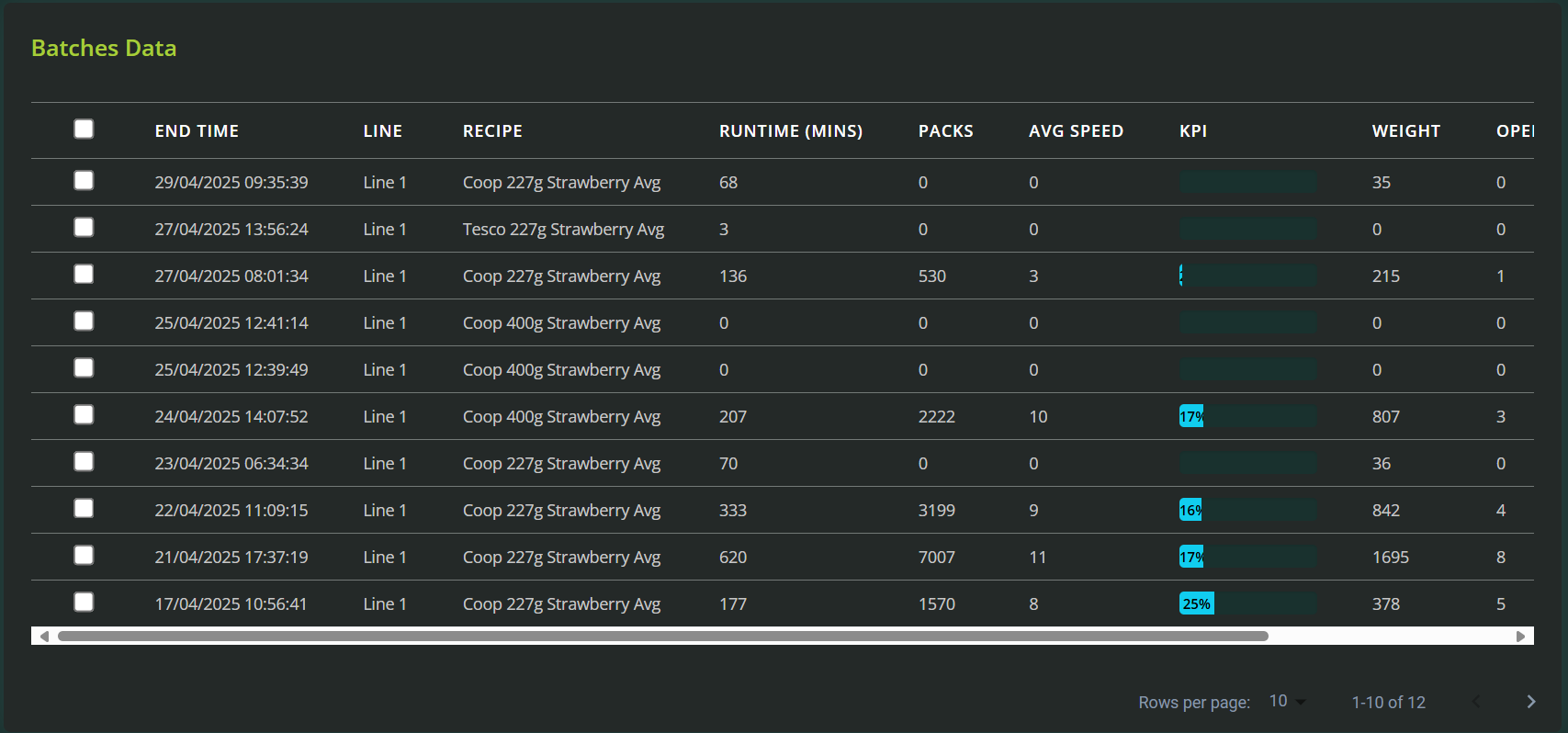
1. Batch Data Table
Displays individual batch records.
Includes details such as batch ID, recipe, date, packs produced, giveaway, and runtime.
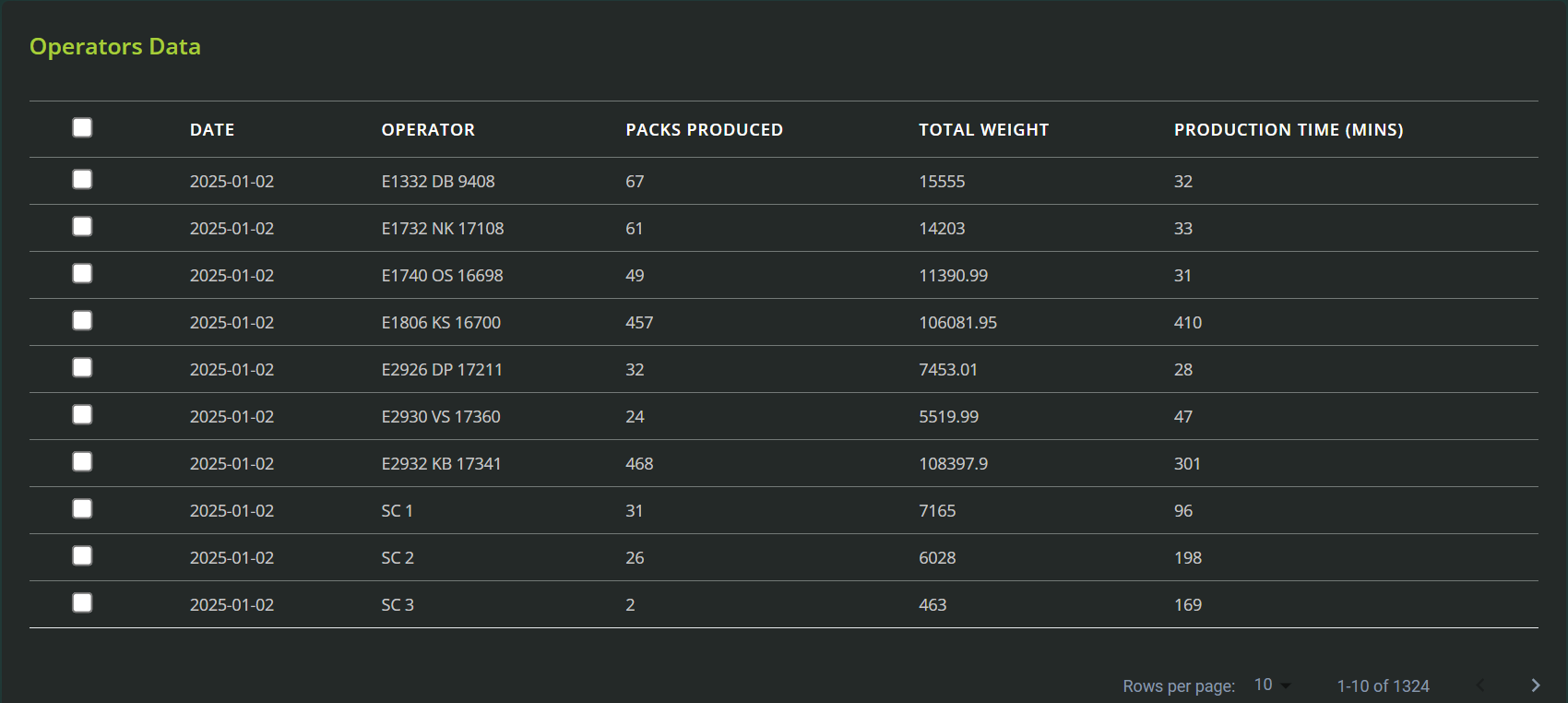
2. Operator Data Table
Shows operator performance metrics.
Includes name, assigned line, packs per minute (PPM), giveaway %, and total runtime.
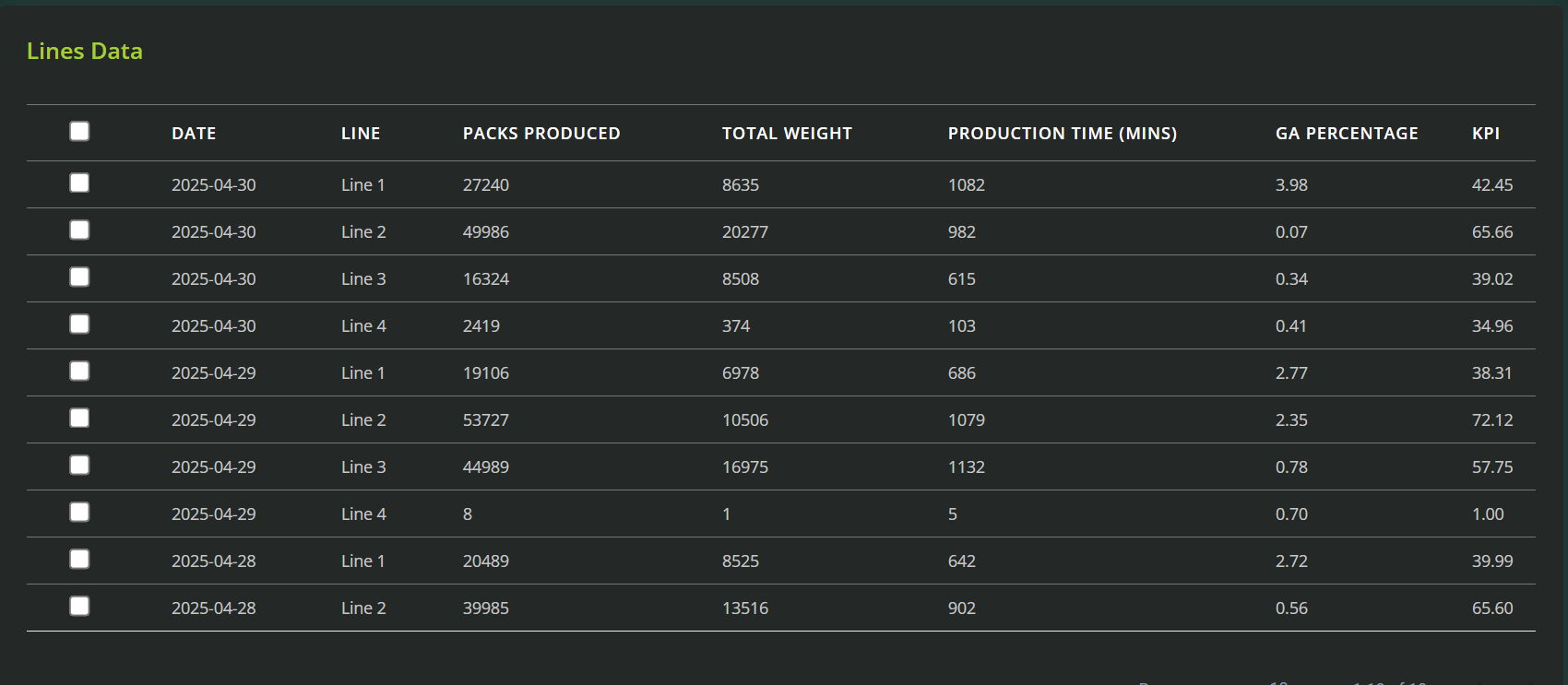
3. Line Data Table
Summarizes performance data at the production line level.
Shows average PPM, total packs, total giveaway, and other key KPIs per line.
Generating a Report
You can generate a report based on selected rows from any of the tables.
To Create a Report:
Use the checkboxes to select one or more rows from the Batch, Operator, or Line table.
Click "Get Report for Selected".
The system will begin generating a report using only the selected data.

You can mix and match filters with your selection to customise your report before generating it.
Recent Reports Section
At the bottom of the page, you'll find the Recent Reports list.
Each report entry includes the time it was generated and the data source (Batch, Operator, or Line).
Once your report is ready, a Download button will appear next to it.
Downloading Reports:
Click the Download button to download the report in Excel (.xlsx) format.
The Excel file will include all data columns from the original table for your selected rows.
✅ Example Use Cases
Generate a report for all batches run on Line 2 in the past 7 days.
Download operator performance for a specific shift to review efficiency and giveaway.
Create a line-level summary report for a monthly review meeting.
Export a filtered batch list to investigate product giveaway trends across recipes.
Was this article helpful?
That’s Great!
Thank you for your feedback
Sorry! We couldn't be helpful
Thank you for your feedback
Feedback sent
We appreciate your effort and will try to fix the article